Swim Instructor Scheduling App: Test Substitute Coverage
9 min read
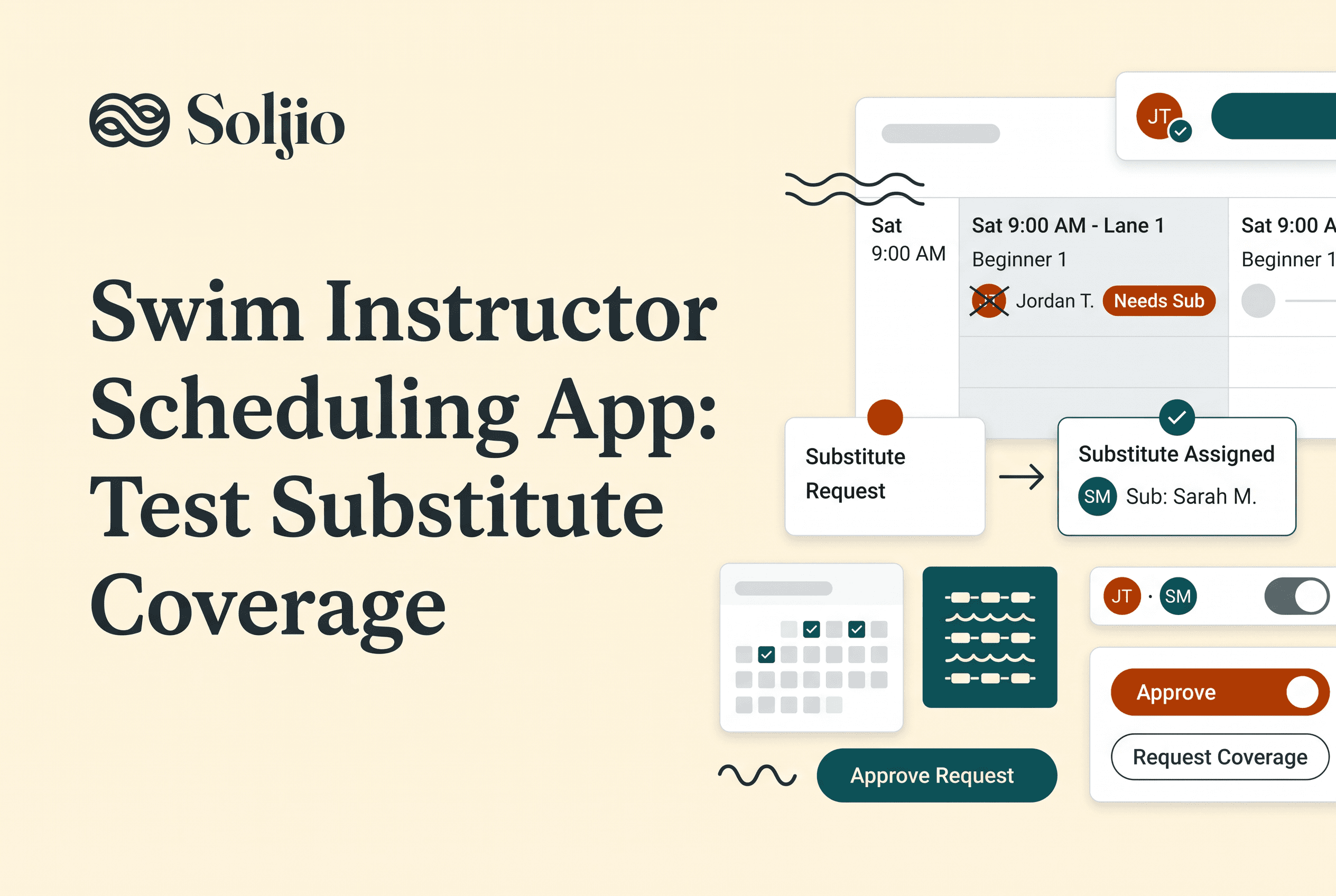
A swim instructor scheduling app earns its keep on the morning an instructor texts that they can't make it, so test that exact moment before you buy: can the app find a substitute, flag a conflict, give the sub the roster and show that someone confirmed? Most search results for this keyword skip that test. They list customer booking tools, parent-facing lesson apps or training apps for coaches, and none of those tell you whether your deck will be staffed at 7 a.m.
This post gives you a demo script instead. Every item is a buyer test you run with the vendor, not a promise about what any product does. Use it on whatever you are evaluating, Soljio included, and write down what you see.
What a swim instructor scheduling app should do (and what it shouldn't be confused with)
A swim instructor scheduling app should answer one question for the owner: who is on which deck, at which time, with which swimmers, today and next week. That is staff coverage. It is a different job from letting a parent pick a slot.
The category gets muddy because the search results mix at least three kinds of product. Swimmer-booking apps are built for families to find and reserve lessons. Coach apps are built for training plans and drill tracking, which is why Google's related questions drift toward "best swim coach app" and swimming workouts. Full swim school platforms such as Jackrabbit Swim, iClassPro and Swum bundle registration, billing and scheduling together. General appointment tools like Acuity Scheduling, Setmore, SimplyBook.me, Koalendar, Picktime, Vagaro and Cal.com are built around a customer picking a time with a person.
None of that is wrong. But decide what you are buying before the demo starts. If your pain is call-outs, a pretty parent booking page won't fix it.
Soljio is swim school software that keeps programs, schedules, rosters, families and progress in one workspace. So the question for any tool, ours included, is whether the staffing side holds up under the test below.
Staff coverage vs. customer appointment booking: why the difference matters in a demo
Customer booking asks "is this slot open for a family?" Staff coverage asks "who is physically on deck, and do they know it?" A demo that only shows the first will make every product look good.
Watch for the pivot. Salespeople love to open on the parent booking flow because it is visual and easy to polish. Politely redirect. Say you will see that later, and ask to start from the staff side: a schedule with instructors assigned to classes and a roster behind each one.
This matters most for independent instructors and small schools. If you are an independent tutor with a handful of private clients, an appointment tool may be all you need. If you run group classes at a rented pool with several instructors, coverage is the job. A single-calendar booking tool has no concept of a class that needs a body on deck.
If you are still comparing broader options, the swim school management software buying checklist covers the wider evaluation. This post stays on call-outs.
The call-out scenario to run in every demo: a 6:15 a.m. text before a shift
Run one scenario in every demo, with the same wording each time, so the products are comparable. Here it is.
It is 6:15 a.m. Your instructor texts that they are sick. They teach the 7:00 and 7:30 group classes and a 8:00 private. Tell the vendor: "Show me what I do in the next ten minutes."
Then stay quiet and watch. Time it with your phone. Note where the vendor clicks, where they leave the product to do something by text or email, and where they say "you could also export that." Every exit from the app is a spot where your current spreadsheet-and-group-chat habit survives.
Before the demo, ask the vendor to load a realistic week: at least four instructors, two levels running at the same time, one instructor with a private lesson back to back with a group class. A demo account with one teacher and one class proves nothing.
The four tests below follow that scenario in order. Score each one pass, partial or fail.
Test 1 and 2: Substitute availability and overlapping assignments
Test 1: Can you see who is free to sub? Ask the vendor to show you which instructors are not already teaching at 7:00 and 7:30. A pass means the answer comes from the schedule itself. A fail means you are expected to remember who is off, or check a separate availability list you keep elsewhere.
Ask the follow-up that matters for swim: does the app know which instructors can teach that level? Putting a new guard on a Level 5 stroke class is a different decision from covering a parent-and-tot class. Note whether the product shows qualifications, levels or nothing at all. Don't assume. Ask, and write down the answer.
Test 2: Does it catch double-booking? Pick a sub who is already teaching at 7:30 and assign them to the 7:30 class anyway. A pass is a visible warning or block before you save. A partial is a conflict you only notice if you open their personal view. A fail is silence.
Then try the sneakier version: assign the sub to the 7:00 class, which ends at 7:30, and the 8:00 private, which starts right after the 7:30 class they were already holding. Overlaps are obvious. Back-to-back stacks with no pool-deck transition time are what actually burn people out, so ask whether the app shows gaps or only collisions.
Also ask what happens to the original instructor's assignments. If the sick instructor stays attached to the classes after the sub is added, your roster now has two names on one class. Check that the swap is clean.
Test 3 and 4: Updated roster access and how staff confirm coverage
Test 3: Can the sub see the roster? A substitute who shows up without names, levels and notes is just a lifeguard with a whistle. Ask the vendor to assign the sub, then log in as the sub, or show you the sub's view. What does that person see? The class roster for the shifts they now own, and nothing they shouldn't?
Two failure modes to catch. First, the sub can't see the roster until you manually share a file or message it. Second, the sub sees every family's contact details across the whole school when they only need one class. If permissions come up, the staff permissions demo tests go deeper on what each role should see.
Also check the day-of reality: instructors work from the deck, on a phone, often with wet hands. Ask to see the sub's view on a phone, not the owner's desktop.
Test 4: Can you prove staff confirmed? Assigning coverage is not the same as the sub knowing about it. Ask: after I assign Jordan to the 7:00, how do I know Jordan saw it and said yes? A pass is a visible confirmation state you can check at a glance. A partial is a notification with no acknowledgment. A fail is "you'd text them to check."
This test separates a schedule from a system. If the answer is a text message, your group chat is still doing the real work and the app is a nicer-looking spreadsheet. Ask what happens if the sub never responds, and whether you can see who is still unconfirmed.
For a look at the attendance side once coverage is running, swim lesson attendance discrepancies shows why a clean record of who taught what pays off later.
Scorecard: what to write down during the demo and red flags to watch for
Print this and fill it in during each demo. Same scenario, same scoring, no memory required.
| Test | What to ask | Pass | Partial | Fail |
|---|---|---|---|---|
| Sub availability | Who is free at 7:00 and 7:30? | Answer comes from the schedule | Needs a separate list | You remember |
| Level fit | Can the sub teach this level? | Shown in the app | Notes field only | Not tracked |
| Double-booking | Assign a busy sub | Warning or block | Visible in a separate view | Silent |
| Clean swap | Is the sick instructor removed? | One action | Two edits | Both names stay |
| Roster access | What does the sub see? | Their classes only | Everything | Nothing until you send it |
| Mobile view | Show it on a phone | Usable on deck | Cramped | Desktop only |
| Confirmation | How do I know they said yes? | Visible status | Notification only | Text them |
| Minutes taken | Time the whole scenario | Under your current method | About the same | Slower |
Red flags worth writing down in red:
The vendor steers back to the parent booking flow when you ask about staff.
Every answer to "how do I know?" ends in "export it" or "send an email."
The demo data has one instructor and one class.
Substitutes need the owner to relay the roster by hand.
Nobody can tell you what a sub sees before you assign them.
One more scoring habit: record what the vendor said separately from what you saw. "Yes, we can do that" is a claim. A screen you watched is evidence. Only the second counts on the scorecard.
After coverage is assigned: telling families
Once the sub is confirmed, families need to hear about it, and that message deserves its own check. Ask each vendor how a schedule change reaches parents: who sends it, what it says, and whether you can review it first.
Keep the message short. Parents want three things: the class is still on, who is teaching, and whether anything about the time or pool changed. Our swim instructor schedule change email guide has wording for exactly this, including how to confirm coverage before you hit send so you never announce a sub who hasn't said yes.
Sequence matters. Confirm staff first, then tell families. Reverse it and you will be writing a second email that says "update to our update."
FAQ: swim instructor scheduling apps, coach apps and what to ask before you switch
Start with the ask-first list for any vendor. Can I run my own call-out scenario with your demo data? Can I see the sub's view? Can I see who has and hasn't confirmed? How do I get my data out if I leave? That last one has its own guide in swim school data export.
For a swim school with group classes, the broader platforms are the natural shortlist. Pembee's 2026 roundup compares eight tools, listing Jackrabbit Swim at $49 per month for 1–100 students and iClassPro at $139 per month per location. Guideflow lists a similar set and adds Amilia, Vagaro and WellnessLiving. Run your call-out scenario against each one you shortlist, because feature lists rarely mention substitutes.
The FAQ below answers the questions searchers ask most.
Run the 6:15 a.m. test on Soljio before you sign anything
A scheduling app is only as good as its worst morning. Take the four tests, the scorecard and the same 6:15 a.m. scenario into every demo, and trust what you watch over what you are told. Soljio keeps programs, schedules, rosters and families in one workspace, and anyone can sign up on the website. Run this exact call-out script on your own classes and score it next to whatever else is on your shortlist.