Swim School Software Staff Permissions: Demo Tests
11 min read
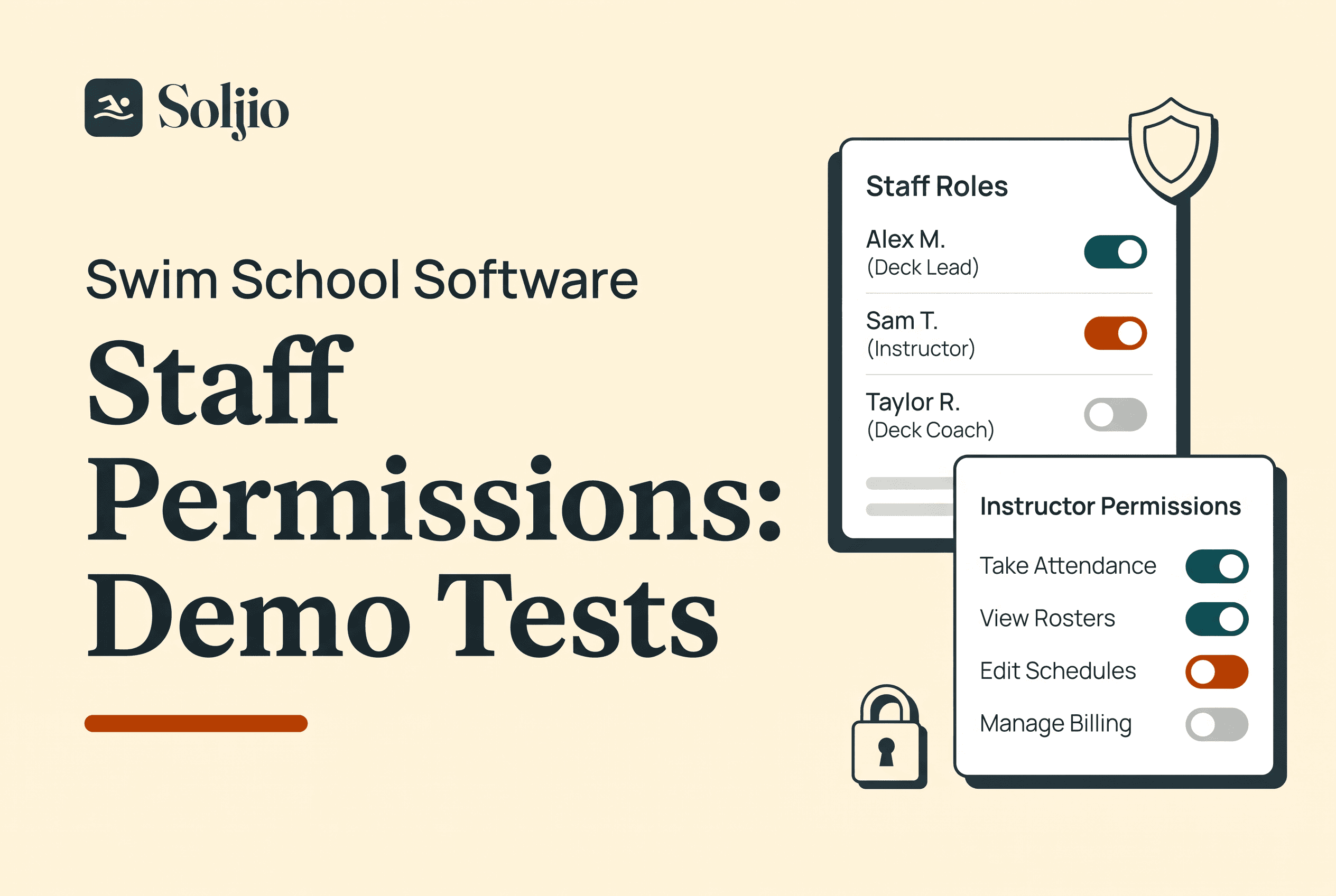
To test swim school software staff permissions, create fictional staff and family records, then ask the vendor to demonstrate live what each role can see, change and reach, and score what you watch instead of what you are told. A "yes, we have roles" answer on a sales call proves nothing. A front-desk login that opens a payment screen it should not is a failure you can only catch by clicking.
This guide is a vendor-neutral script you can run in any swim school software demo or free trial. Each test is a question to see answered on screen, never a feature to assume. It is narrower than a full switch: for the wider evaluation, see the swim school management software owner buying checklist, and for covering your own absence, see the admin handover checklist for owner time off.
Why staff permissions deserve their own demo test
Staff permissions need a separate test because a demo is usually run from the owner's account, which can do everything. That hides the exact thing you need to see. Your real risk lives in the other logins: the 17-year-old instructor, the seasonal substitute, the part-time front-desk hire.
A swim school holds data that general small-business tools do not: children's names, guardians' phone numbers, emergency contacts, medical notes and card-on-file details. Role-based access limits each person to what their job needs. Security reviewers call the principle least privilege: grant only the access a task requires, and nothing bundled alongside it.
The method from access-control evaluations applies directly. Ask the vendor to show each workflow live with test users, agree on expected outcomes before the demo, and test denied actions as hard as allowed ones. A role that can do its job proves little. A role that is blocked from everything else proves the design.
One red flag to watch for throughout: roles that bundle unnecessary permissions. If the only way to let an instructor mark attendance is to make them an admin, write that down. It is a fail, not a workaround.
Set up fictional test records and roles before the demo
Set up your test data first, so the vendor demonstrates against your situation instead of a polished sample account. Send a short list ahead of the call, or build the records yourself in a trial.
Use entirely fictional records. Never paste real families into a demo or trial:
Two families. The Marlowe family with a guardian phone number, a second guardian and an allergy note on the child. The Okafor family with a different address and a sibling in another class.
Three classes. Tuesday 4:00 Level 2, Tuesday 4:30 Level 3, Saturday 9:00 Parent and Tot.
Four staff logins. An owner or admin, a front-desk manager, a regular instructor assigned to Tuesday 4:00 only, and a substitute with no prior access.
One expected-outcome sheet. For each test below, write what each role should and should not be able to do before the demo starts.
Write your expectations first. Otherwise you'll rationalize a gap once you see the screen. Ask the vendor to log in as each role while you watch, or take the controls yourself in a trial. A screenshot or a slide of a permissions table doesn't count as a demonstration.
Test 1: Who can see family contact details
The first question is which roles can see guardian phone numbers, emails, addresses and notes, and whether that visibility can be limited to the families an instructor actually teaches.
Run it like this. Log in as the Tuesday 4:00 instructor and open the Marlowe family. What contact details appear? Can this instructor search for the Okafor family, who are in a different class? Can they see the guardian's full address, or only what they need on deck, such as an emergency contact and an allergy note?
Then repeat as front desk and as the substitute. Write down the answer for each role in a grid.
Also ask three follow-ups:
Can a role export or print a list that includes contact details, and who is allowed to?
Can an instructor see a parent's email without being able to bulk-copy the whole directory?
Can the instructor's screen show the family's other children or other classes?
A pass means the answer matches your expected-outcome sheet for every role. A fail is any role seeing more than its job needs, with no way to narrow it.
Test 2: Who can change rosters and class assignments
The second test asks who can move a swimmer between classes, add or remove one, and reassign an instructor, and whether those changes are recorded.
As front desk, move a fictional swimmer from Tuesday 4:00 to Tuesday 4:30. Ask the vendor to show what happens. Does the change take effect immediately? Does anyone see who made it? Can it be undone?
Then log in as the regular instructor and try the same move. The right answer depends on how you run your school. Some owners want instructors to view rosters but never edit them. Others let a head coach adjust levels. The test is whether the software lets you choose, not which choice it defaults to.
Ask specifically:
Can an instructor see only their assigned classes, or every class in the building?
Can a role add a swimmer to a full class, and does anything warn them?
Where do I see a history of roster changes, and who made each one?
To check how rosters get in and out of the system, the roster software tests before you switch cover that separately. Here, the only question is who is allowed to touch them.
Test 3: Who can mark attendance and skills
The third test confirms that instructors can record attendance and skill progress for their own classes, then probes what else those same logins can reach from the deck.
As the Tuesday 4:00 instructor, mark the fictional swimmers present or absent, then mark a skill as passed. Now ask the harder questions. Can this instructor mark attendance for the Saturday Parent and Tot class they do not teach? Can they edit a skill result entered last week by someone else? Can they delete an attendance record entirely?
Edits to past records are where disputes start. If a parent says their child was marked absent in error, you need to know who changed the record and when. The attendance discrepancies guide shows why that trail matters once a parent calls.
Check the deck reality too. Instructors work wet, on a phone or tablet, often with patchy signal. Ask the vendor to show the instructor login on a phone, in the browser or app they would really use, and to explain what happens if a connection drops mid-class. Don't assume an answer. Ask to see it.
Pass: instructors can record what they need for their own classes and nothing beyond. Fail: attendance and skills are open to any logged-in user, or locked so tightly that instructors must hand paper notes to the front desk.
Test 4: Who can reach payment information
The fourth test establishes which roles can see balances, invoices, card details and refunds. Payment access should be the narrowest in the building.
Start with the instructor login and look for any screen showing what a family paid or owes. It should not be there unless you decided it should. Then check front desk. Can they see that a family has an outstanding balance without seeing stored card information? Can they issue a refund, or only flag one for you?
Ask the vendor to show, not describe:
Which roles can view a family's payment history
Which roles can take or change a payment
Which roles can issue a refund or credit
Whether any role can see full card numbers, and if not, what is shown instead
Whether payment actions appear in a history with a name and timestamp
For parent-facing payment flows, the enrollment software parent journey test covers the family side. This test is only about staff.
Reassurance about compliance is not a demonstration. A vendor can say the right words and still show you a front-desk screen that exposes a billing page. What you see is the evidence.
Test 5: Substitute instructor access for one class
The fifth test checks whether a substitute can be given access to one class on one day, then lose it, without becoming a permanent user with the regular instructor's reach.
Substitutes are where permission designs often break, because the realistic workflow is a text at 3:15 asking someone to cover a 4:00 class. Ask the vendor to walk through it live:
Create the substitute's login as admin or front desk.
Give them access to the Tuesday 4:00 Level 2 roster only.
Log in as the substitute and confirm they see that class and no other, and that they can mark attendance but not see guardian addresses beyond what you allowed.
Remove or expire the access after class.
Then ask the awkward questions. How long does this take front desk, and can front desk do it without you? Does access end automatically, or does someone have to remember? If a substitute is added to the class as the instructor of record, does the regular instructor lose anything?
The instructor schedule change email guide covers telling families about coverage. This test is about the access behind it. A pass means a narrow, temporary, easily reversed grant. A fail means the only options are no access or full access.
Test 6: Removing access when staff leave, and what to ask the vendor to show
The sixth test confirms that when someone leaves, you can cut off their access immediately and verify it worked, instead of trusting that it did.
Use your fictional regular instructor as the leaver. As admin, remove or deactivate their login. Then do three things:
Try to log in as that user in a fresh browser. It should fail.
Check whether any session already open was ended or stays alive.
Look at your records. Is their past attendance and skill history still intact and attributed, or did removal delete it?
This is the offboarding check from access-control evaluations: terminate a test identity and verify removal, including timestamps and completion status. A workflow that records a removal decision without confirming the access is gone is a red flag.
Then ask the vendor to show:
Where you see who currently has access to your account
Whether you can review that list each session and revoke anyone who no longer needs it
A record of who was added or removed, by whom, and when
Whether you can export that information, and in what form
If you also plan to move existing data in or out, the data export test is the companion check. Here, the pass criterion is simple: gone means gone, and history stays.
Score the demo: pass, fail and follow-up questions
Score each test against the expected-outcome sheet you wrote before the demo. Pass if the live demonstration matched it, fail if it did not, and follow-up if the vendor could not show it and promised to get back to you.
Use a simple grid with roles down the side and the six tests across the top:
| Test | Owner/admin | Front desk | Instructor | Substitute |
|---|---|---|---|---|
| 1. Family contact details | ||||
| 2. Roster and class changes | ||||
| 3. Attendance and skills | ||||
| 4. Payment information | ||||
| 5. Single-class substitute access | ||||
| 6. Removal when staff leave |
"We can build that" or "it's on the roadmap" is a fail for today. "Let me check with the team" is a follow-up, with a date. Ask for a screen recording or a trial login so you can see it yourself.
Count the red flags: roles that bundle permissions you do not want to grant together, access that survives a transfer or removal, and any control the vendor describes but cannot show. Two or more in a core test (payments or family contact details) is a reason to keep looking.
Never assume a permission exists because a competitor has it or because it seems obvious. Soljio is swim school software that keeps programs, schedules, rosters, families and progress in one workspace, with instructors taking attendance and marking skills from the deck. Apply this exact script to it, and to every other option on your list, and hold each to the same grid.
Run the six tests on Soljio before you commit to anything
Permissions are a promise about your families' data, and the only honest evidence is a role you watched fail to open the wrong screen. Build your fictional records, write your expected outcomes, and score every vendor against the same grid, including Soljio. Sign up on the Soljio website, create your test staff logins, and run all six tests yourself before you move a single real roster.